Truck Link Pro — First Time Setup
One-time setup
Do this once. After this, you just plug Truck Link Pro into the truck and log in. If your phone says “No internet” while connected to TRUCKLINKPRO — that is normal.
0
Before you start
- Plug Truck Link Pro into the truck’s OBD port.
- Wait 60 seconds for it to turn on.
- Have your Wi-Fi password ready (or your phone hotspot password).
1
Connect your phone to TRUCKLINKPRO
- Open Settings
- Tap Wi-Fi
- Make sure Wi-Fi is ON
- Tap the Wi-Fi name TRUCKLINKPRO (see picture)
- Password: TruckLink123 (the T and L are capitals)
- Wait until it says Connected
Important: Your phone may say “No internet”. That is normal.
Do not disconnect.
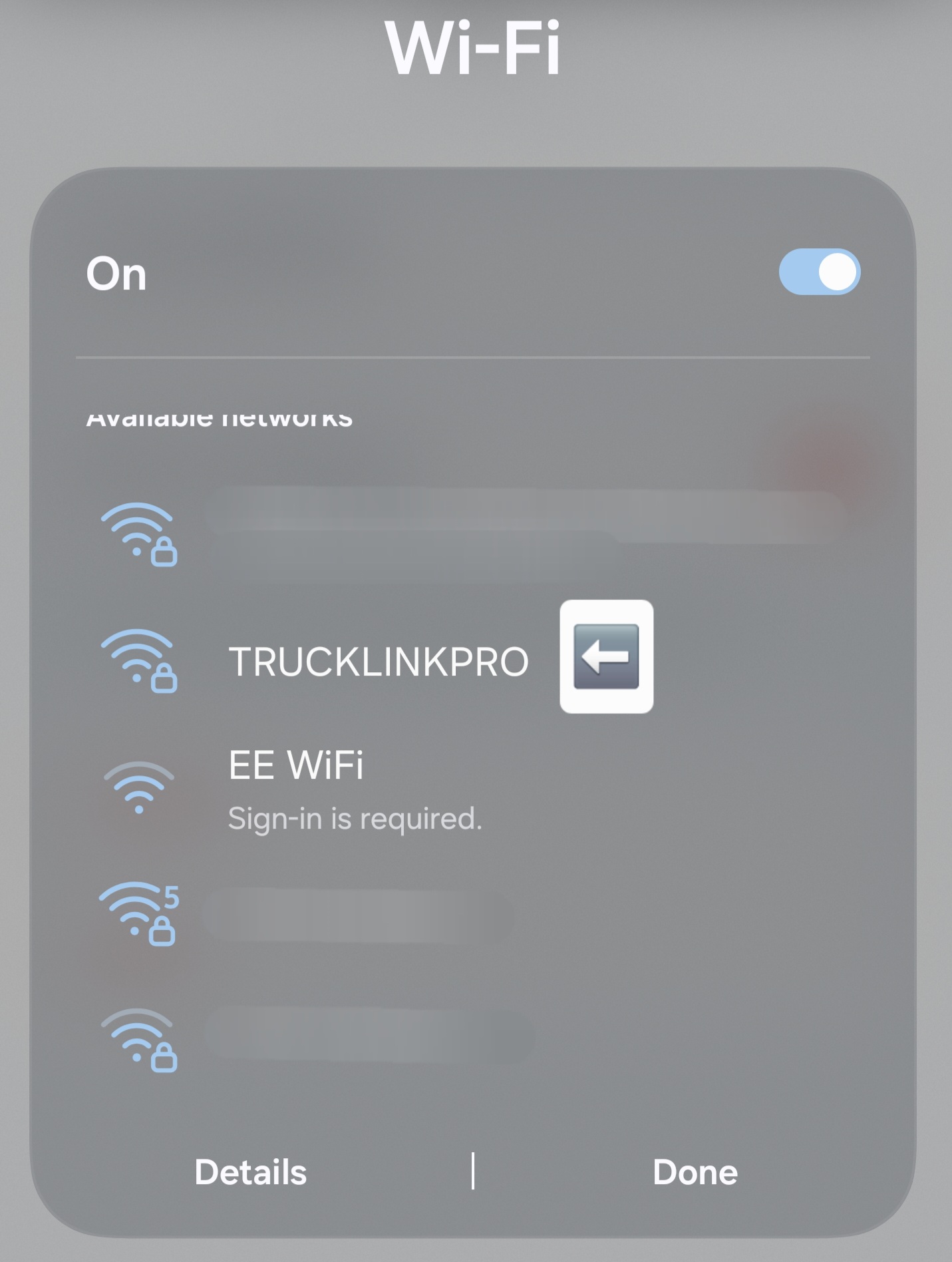
Look for TRUCKLINKPRO in your Wi-Fi list and connect to it.
2
Open the setup page
- Open Chrome / Safari / Internet (your web browser)
- In the address bar at the top, type: 192.168.4.1
- Press Go / Enter / Search
✓
You should now see: “Truck Link Pro — Connect to Wi-Fi”
If nothing loads: you are not connected to TRUCKLINKPRO. Go back to
Settings → Wi-Fi → TRUCKLINKPRO and try 192.168.4.1 again.
3
Tell Truck Link Pro your workshop Wi-Fi
- Tap Select a network (1)
- Tap your workshop Wi-Fi name (SSID)
- Tap Password (2)
- Type the Wi-Fi password
- Tap Join Wi-Fi (1)
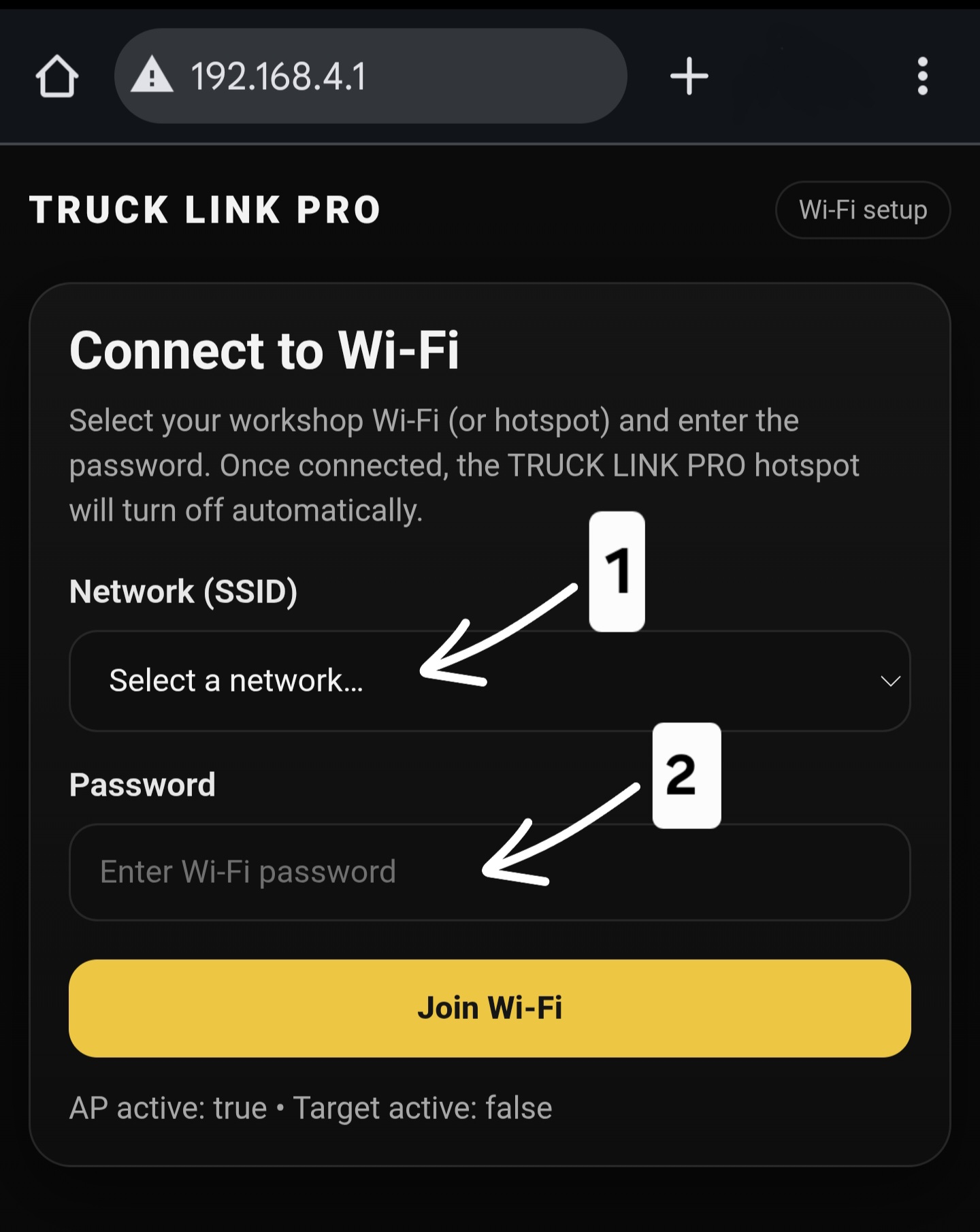
Tap Select a network (1) and enter the Password (2).
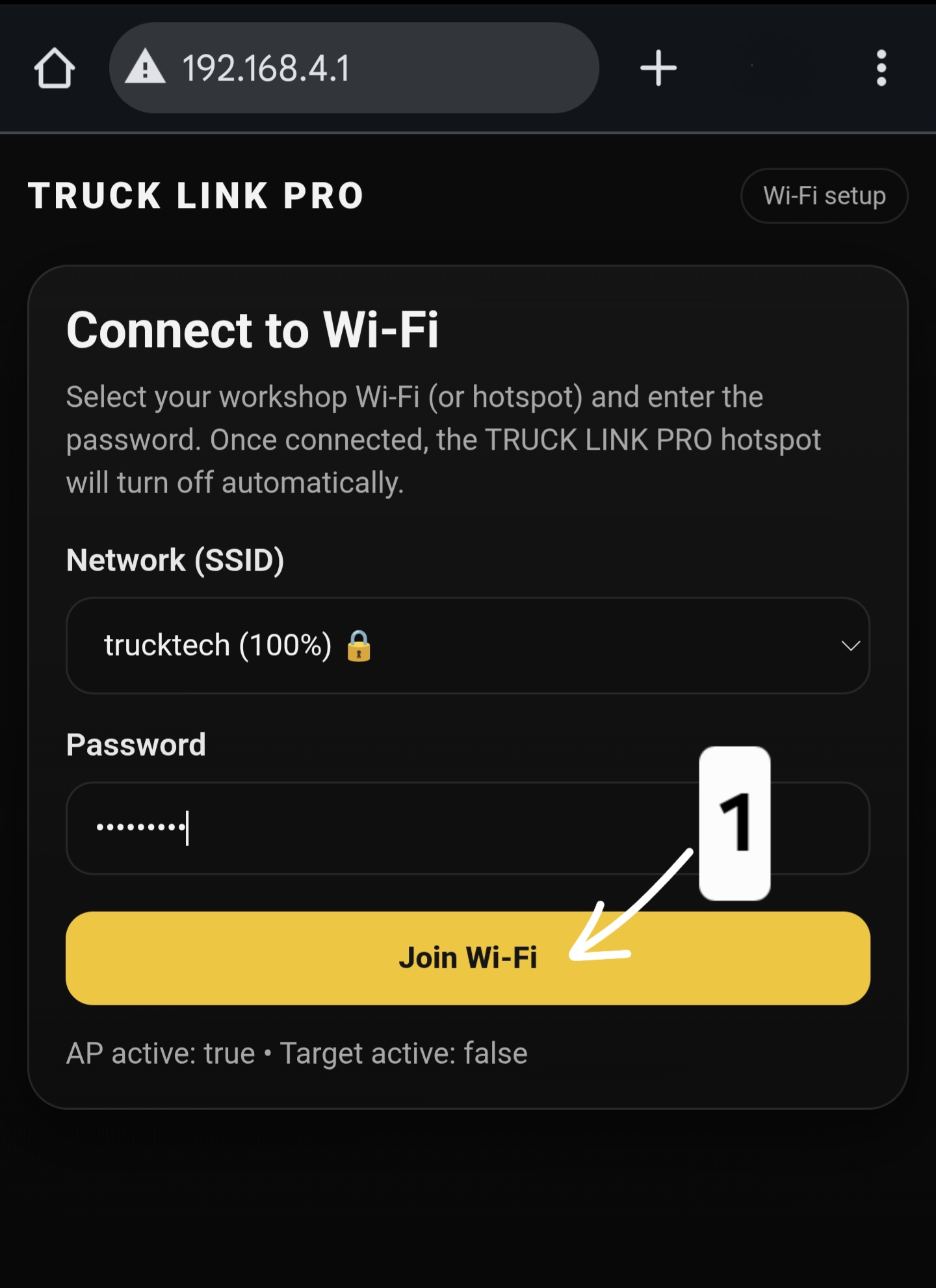
When ready, tap Join Wi-Fi (1).
4
Wait (your phone will disconnect)
- The screen will say Connecting…
- Your phone will lose TRUCKLINKPRO Wi-Fi (normal)
- The TRUCKLINKPRO hotspot will turn off by itself
Do not worry. It’s supposed to happen.
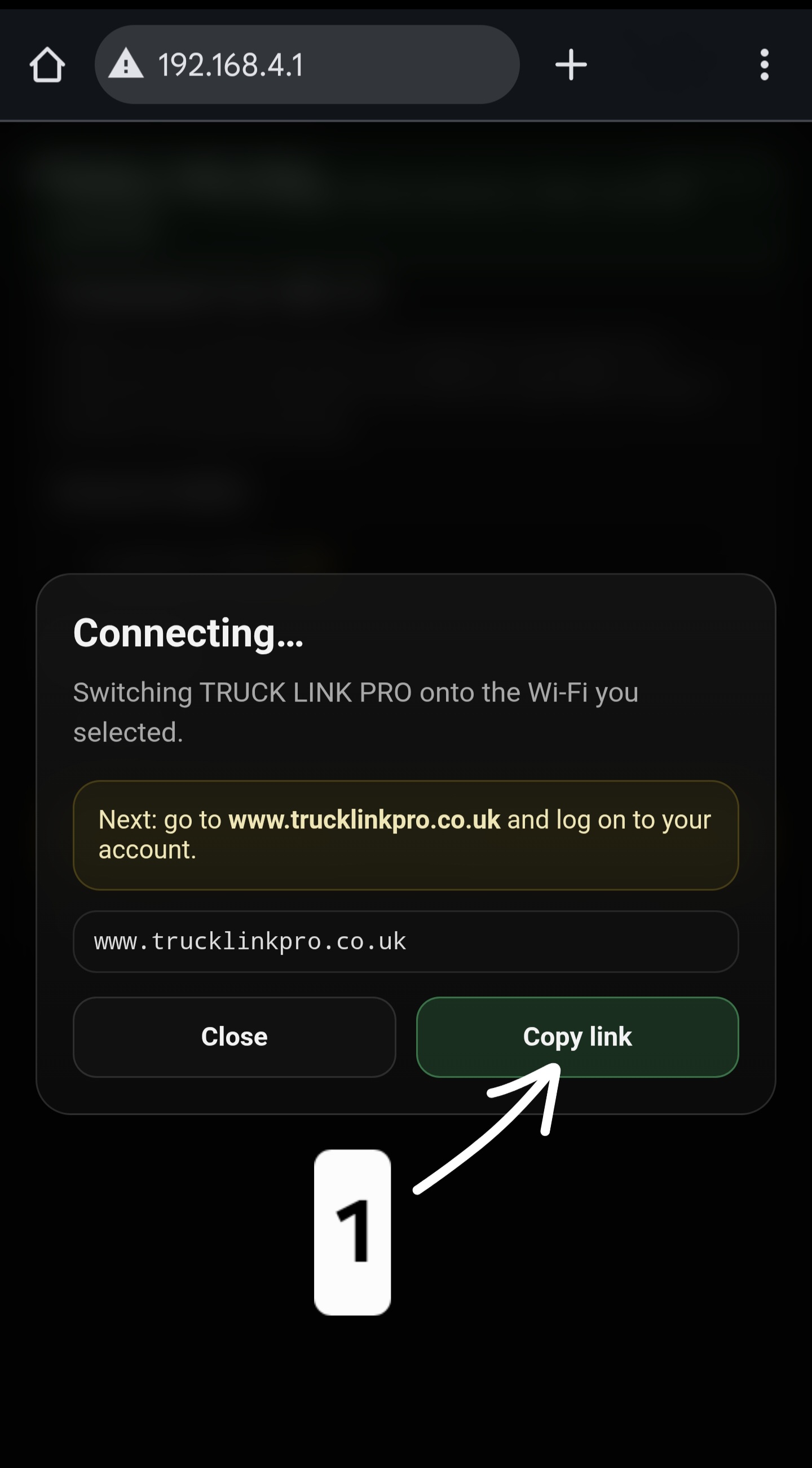
You may see a Copy link button. You can use it, or just go to the website manually in Step 5.
5
Go to the website and log in
- Go back to your normal internet (mobile data or your Wi-Fi)
- Open your browser
- Go to: www.trucklinkpro.co.uk
- Log in to your account
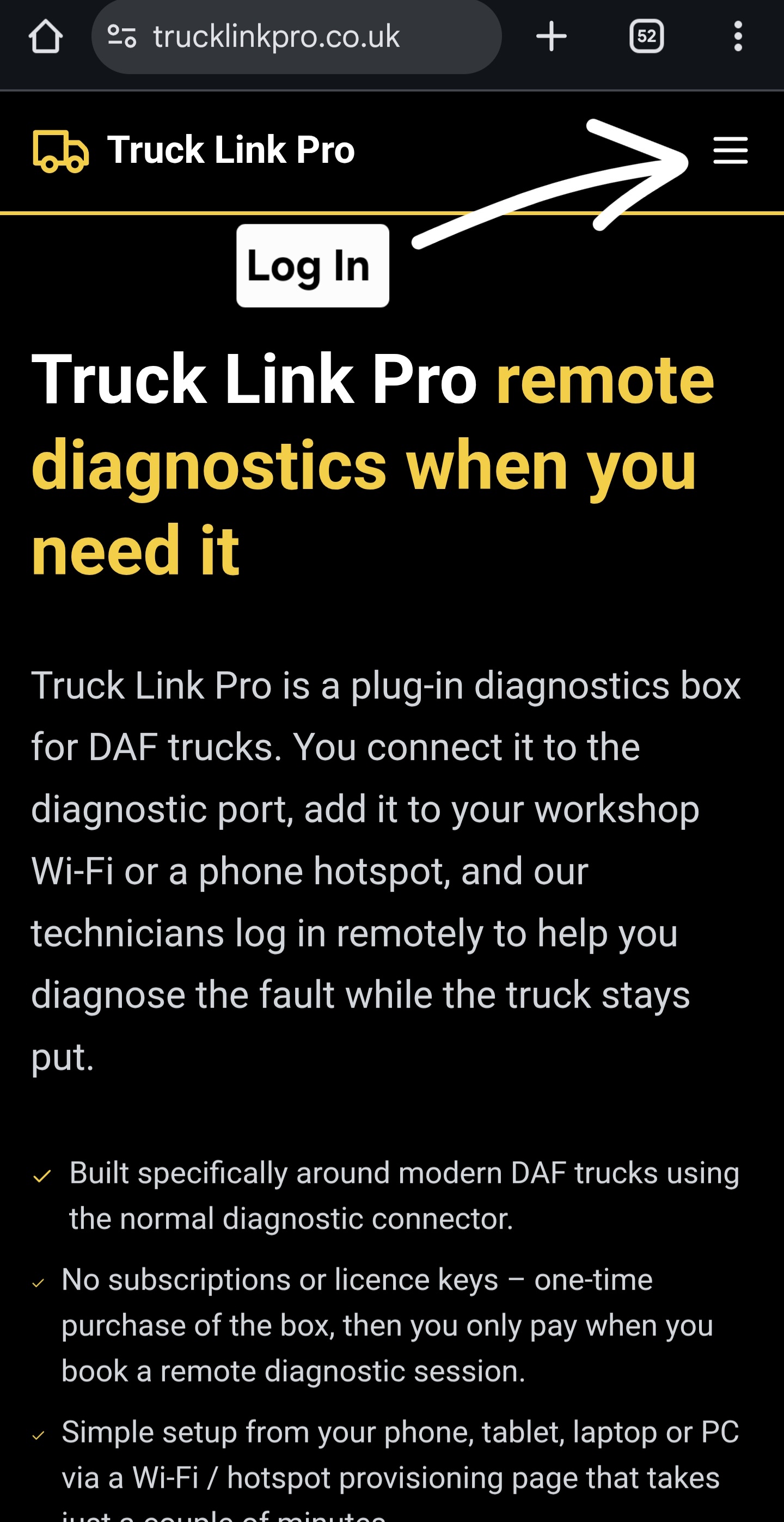
Open trucklinkpro.co.uk and log in.
!
If it doesn’t work (quick fixes)
I can’t see TRUCKLINKPRO in Wi-Fi list
- Wait another 60 seconds
- Turn Wi-Fi off and on again
- Move closer to the truck/device
The setup page won’t open
- You are not connected to TRUCKLINKPRO
- Go back to Settings → Wi-Fi → TRUCKLINKPRO
- Then type 192.168.4.1 again
It says “wrong password” / won’t connect
- Most common: the Wi-Fi password was typed wrong
- Type it again slowly
- Watch for CAPS LOCK and spaces
My phone says “No internet” and wants to disconnect
You don’t need the internet to set up your device to start with.
Stay connected to TRUCKLINKPRO until you complete Step 3.